

Quickstart: Apache Fluss™ on Ververica Platform 3
Stream data into Apache Fluss from Ververica Platform 3, tier it into Iceberg, and query it from Apache Fluss, the lake, and both at once.
On this page
- Overview
- Preparation
- Ververica Platform and Local Tools
- Creating the Deployment Target and the Session Cluster
- Installing and Uploading the Client JARs
- Buckets and an Access Key
- A Lakekeeper Catalog
- An Apache Fluss Cluster with Tiering
- Registering the Cluster in the Apache Fluss Console
- Creating the Secret Values
- Running the Tiering Service
- Creating the Catalog and the Tables
- Browsing the Tables in the Apache Fluss Console
- Streaming Data into Apache Fluss
- Reading Fresh Data from Apache Fluss
- Reading the Lake
- Troubleshooting
- Reading remote segments fails with NoSuchMethodError
- The Catalogs page cannot open the catalog
- A row-limited read of the trades fails
- Planning fails with No LakeStoragePlugin available
- The session cluster does not start
- The session cluster is stopped or out of metaspace
- A Debug run fails with Failed to get response from sql gateway server
- Concurrent Debug reads fail with ClassCastException
- The console cancels a Debug run with "no started flag file"
- Further Reading
Applies to: fluss-bundle chart and Docker image registry.ververica.cloud/platform-images/fluss:1.0.0-vv-3, with jobs on Ververica Platform 3
Overview
This walkthrough runs one scenario end to end. A trading desk streams its executed trades and its client accounts into Fluss from Ververica Platform 3. trades is a log table, one row per executed trade, which Fluss tiers into an Apache Iceberg lake through a Lakekeeper REST catalog on Amazon S3. accounts is a primary-key table, the latest state of each client account; it stays in Fluss, and a lookup join enriches each trade with it. You then query the data from Fluss, from the lake, and from both at once, and see the cluster and its tables in the Fluss Console.
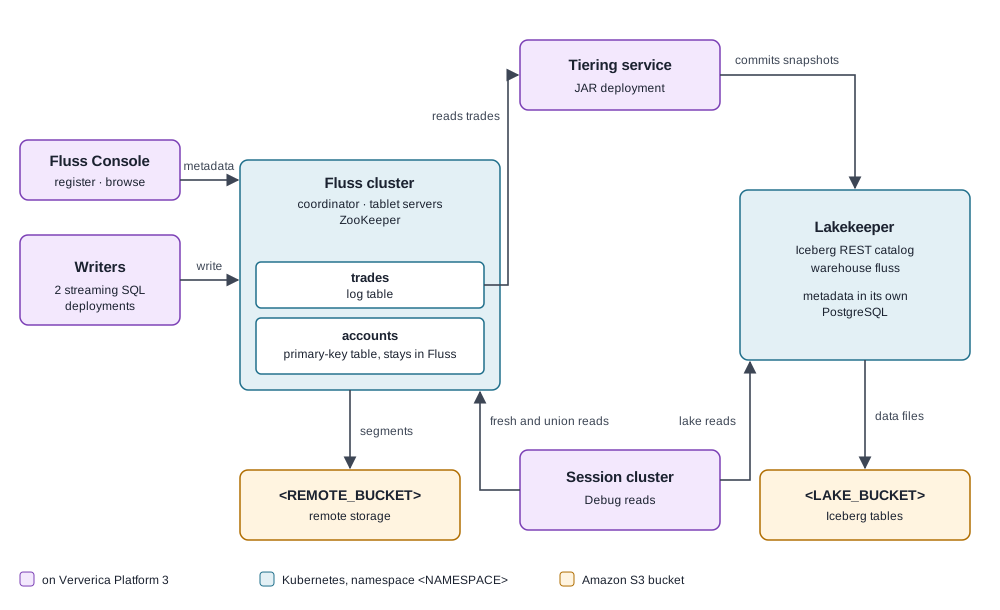
The setup: Fluss 1.0.0-vv-3, Ververica Platform 3 3.x (3.1.4 or later for the Fluss Console) with the engine version vera-4.5-jdk11-flink-1.20, Amazon S3, Lakekeeper, and Iceberg. Each step links the manual that covers it in general.
Preparation
Ververica Platform and Local Tools
You need:
- A Ververica Platform 3 workspace and namespace, and access to the Ververica Platform 3 console at
<VVP_URL>, the URL of your Ververica Platform 3 platform, from your platform administrator. See Ververica Platform 3 Getting Started. The workspace isdefaultworkspace, the one a Ververica Platform 3 installation has; below,<VVP_NAMESPACE>is the namespace's name, and<JOB_NAMESPACE>is the Kubernetes namespace your VERA jobs run in, from your platform administrator. - The Fluss Console enabled on the platform, which needs Ververica Platform 3
3.1.4or later. Check that<VVP_URL>/flussopens it. - Optionally,
vvctl, the Ververica CLI, installed. It makes uploading the JARs and creating the secret values faster; both can also be done in the console. See the Ververica CLI documentation. For what each console step below does in general, see Running Fluss Jobs on Ververica Platform 3. - Docker on your laptop, with pull access to the Fluss image. See Registry Credentials.
kubectlandhelmaccess to the Kubernetes cluster Fluss runs in, and network access from<JOB_NAMESPACE>to that cluster.
If you use vvctl, it authenticates to Ververica Platform 3 with an API token. In the console, open Configurations -> API Tokens -> Add Token, enter the name fluss-quickstart and the role owner, and confirm. The console shows the token once: copy it as <API_TOKEN>. The API Tokens list then shows fluss-quickstart, for example:

Then point vvctl at the platform. See vvctl configuration for each command:
1vvctl config set-server --host <VVP_URL> vvp3
2vvctl config set-user vvp3 --namespace <VVP_NAMESPACE> --token <API_TOKEN>
3vvctl config set-context vvp3 --server vvp3 --user vvp3
4vvctl config use-context vvp3
Check Docker, and vvctl if you use it:
1docker pull registry.ververica.cloud/platform-images/fluss:1.0.0-vv-3
2
3vvctl get artifacts
Creating the Deployment Target and the Session Cluster
Every deployment runs on a deployment target, which binds it to a Kubernetes namespace. A fresh Ververica Platform 3 namespace has none. In the console, open Deployment Targets -> Create Deployment Target and set:
- Deployment Target Name:
fluss-quickstart-target - Kubernetes Namespace:
<JOB_NAMESPACE>
Confirm with OK. The console shows "Deployment Target created.", and the list shows fluss-quickstart-target with its Kubernetes namespace, for example:

The Debug runs in this walkthrough run their queries on a session cluster, which stays up between queries. Open Session Clusters -> Create Session Cluster and set:
- Name:
fluss-quickstart-session - Deployment Target:
fluss-quickstart-target - State:
RUNNING - Engine Version:
vera-4.5-jdk11-flink-1.20. Thejdk17engine does not start a session cluster on this platform release. - Other Configuration, one option per line:
taskmanager.memory.jvm-metaspace.size: 512m. Each Debug run of a lake query loads the Iceberg JARs into a new classloader, and the default metaspace runs out after a few of them.taskmanager.numberOfTaskSlots: 16. A lake-only read runs one task per lake split, which grows as tiering commits data, and a single slot never schedules it.
- Leave the resources at their defaults: 1 TaskManager, JobManager 1 core and 4 GiB, TaskManager 2 cores and 8 GiB.
Confirm with Create Session Cluster. The session cluster has no Additional Dependencies field: Debug runs take their JARs from the draft. Its page shows Starting, then Running, for example:

See Deployment Targets and Session Clusters for their fields in general.
Installing and Uploading the Client JARs
The jobs reach Fluss and the Iceberg lake through client JARs. Install them on your laptop with the installer that ships in the Fluss image, one command per setup:
1mkdir -p jars
2
3# The Fluss Flink connector, the S3 filesystem, and the Iceberg lake client
4docker run --rm -v "$PWD/jars":/output \
5  registry.ververica.cloud/platform-images/fluss:1.0.0-vv-3 \
6  /opt/fluss/bin/setup/install.sh client lake-iceberg --fs s3 --catalog rest --output-dir /output/lake-iceberg
7
8# The tiering service's entry JAR
9docker run --rm -v "$PWD/jars":/output \
10  registry.ververica.cloud/platform-images/fluss:1.0.0-vv-3 \
11  /opt/fluss/bin/setup/install.sh client lake-tiering-service --output-dir /output/lake-tiering-service
Each command ends with Installed to: /output/<setup> and lists its JARs.
The S3 filesystem JAR of 1.0.0-vv-3 has a known issue on the engine version vera-4.5-jdk11-flink-1.20: reading data in remote storage fails. Install the S3 filesystem from the 0.9.1-vv-1 release, and use its JAR in place of the one lake-iceberg installs.
1# The S3 filesystem from the 0.9.1-vv-1 release
2docker run --rm -v "$PWD/jars":/output \
3  registry.ververica.cloud/platform-images/fluss:0.9.1-vv-1 \
4  /opt/fluss/bin/setup/install.sh client fs-s3 --output-dir /output/fs-s3
Upload every installed JAR except 2: the S3 filesystem JAR that lake-iceberg installs, which the warning replaces, and the Fluss Flink connector that fs-s3 installs, since the lake-iceberg one is used:
1for jar in jars/*/*.jar; do
2  case "$jar" in
3    jars/lake-iceberg/fluss-fs-s3-*.jar | jars/fs-s3/fluss-flink-*.jar) continue ;;
4  esac
5  vvctl create artifact --filename "$jar" \
6    --workspace defaultworkspace --namespace <VVP_NAMESPACE>
7done
Each command prints the artifact with its s3i:// URI. Without vvctl, upload the same JARs on the Artifacts page; see Uploading the JARs as Artifacts. The Artifacts page lists all 7 JARs, for example:

The console's Additional Dependencies and JAR URI fields offer the uploaded JARs by name, so you pick them from a list. Below, the client JARs are every uploaded JAR except the tiering service's entry JAR.
For another storage or catalog, see Installing Fluss Setups for the setups and their options.
Buckets and an Access Key
This walkthrough uses Amazon S3. For other object stores, see Configuring Remote Storage, and for what a read adds on them, Options by Object Store.
You will need:
- 2 S3 buckets with public access blocked:
<REMOTE_BUCKET>, the cluster's remote storage, and<LAKE_BUCKET>, the tiered lake. - An IAM user with an access key, and the policy below attached.
Attach this policy to the IAM user. It grants read and write on both buckets:
1{
2  "Version": "2012-10-17",
3  "Statement": [
4    {
5      "Effect": "Allow",
6      "Action": ["s3:ListBucket", "s3:GetBucketLocation"],
7      "Resource": [
8        "arn:aws:s3:::<REMOTE_BUCKET>",
9        "arn:aws:s3:::<LAKE_BUCKET>"
10      ]
11    },
12    {
13      "Effect": "Allow",
14      "Action": ["s3:GetObject", "s3:PutObject", "s3:DeleteObject"],
15      "Resource": [
16        "arn:aws:s3:::<REMOTE_BUCKET>/*",
17        "arn:aws:s3:::<LAKE_BUCKET>/*"
18      ]
19    }
20  ]
21}
See the AWS S3 documentation and the IAM documentation for setup instructions.
One access key pair with read and write on both buckets is for trying Fluss. It is not a recommended setup for production.
The access key, <AWS_ACCESS_KEY_ID> and <AWS_SECRET_ACCESS_KEY>, goes to 2 places: the Fluss servers, for remote storage, and the Lakekeeper warehouse, for the lake. <AWS_REGION> is the region of both buckets.
A Lakekeeper Catalog
Lakekeeper is this walkthrough's example catalog. A catalog you already run works too: for the other tested catalogs, see Configuring Lake Tiering. The Lakekeeper instance below is for trying Fluss, not for production; for running it in production, see the Lakekeeper documentation.
First, create the client identity whose token Fluss and the jobs present to Lakekeeper: a Kubernetes ServiceAccount, and a Secret that carries its long-lived token under the key token. Save it as lakekeeper-client.yaml:
1apiVersion: v1
2kind: ServiceAccount
3metadata:
4  name: fluss-lake-client
5---
6apiVersion: v1
7kind: Secret
8metadata:
9  name: fluss-lake-client-token
10  annotations:
11    kubernetes.io/service-account.name: fluss-lake-client
12type: kubernetes.io/service-account-token
Then install Lakekeeper from its Helm chart, with Kubernetes authentication on, so that it accepts the ServiceAccount's token. The chart runs its own PostgreSQL database, which holds the catalog's metadata; <STORAGE_CLASS> is a storage class of your cluster, for its volume. Save the values as lakekeeper-values.yaml:
1postgresql:
2  storage:
3    className: <STORAGE_CLASS>
4auth:
5  k8s:
6    enabled: true
7    legacyEnabled: true
<NAMESPACE> is the Kubernetes namespace you install Fluss in:
1kubectl apply -f lakekeeper-client.yaml --namespace <NAMESPACE>
2
3helm install fluss-lakekeeper lakekeeper \
4  --repo https://lakekeeper.github.io/lakekeeper-charts/ \
5  --version 0.12.0 \
6  --namespace <NAMESPACE> \
7  -f lakekeeper-values.yaml
The release name fluss-lakekeeper gives the chart's Service the name fluss-lakekeeper, on port 8181.
Next, bootstrap Lakekeeper and create the warehouse fluss on <LAKE_BUCKET>, through its management API, with the client token. The warehouse holds the access key. From your laptop, forward the Service's port and write the request bodies to files, so that no credential appears on the command line:
1kubectl port-forward svc/fluss-lakekeeper 8181:8181 --namespace <NAMESPACE> &
2
3printf 'Authorization: Bearer %s\n' \
4  "$(kubectl get secret fluss-lake-client-token --namespace <NAMESPACE> -o jsonpath='{.data.token}' | base64 -d)" \
5  > auth.txt
6
7printf '{"accept-terms-of-use": true}' > bootstrap.json
8
9cat > warehouse.json <<'EOF'
10{
11  "warehouse-name": "fluss",
12  "storage-profile": {
13    "type": "s3",
14    "bucket": "<LAKE_BUCKET>",
15    "key-prefix": "fluss-lake-storage",
16    "region": "<AWS_REGION>",
17    "sts-enabled": false,
18    "flavor": "aws"
19  },
20  "storage-credential": {
21    "type": "s3",
22    "credential-type": "access-key",
23    "aws-access-key-id": "<AWS_ACCESS_KEY_ID>",
24    "aws-secret-access-key": "<AWS_SECRET_ACCESS_KEY>"
25  }
26}
27EOF
28
29curl -sS -X POST http://localhost:8181/management/v1/bootstrap \
30  -H @auth.txt -H 'Content-Type: application/json' --data-binary @bootstrap.json
31
32curl -sS -X POST http://localhost:8181/management/v1/warehouse \
33  -H @auth.txt -H 'Content-Type: application/json' --data-binary @warehouse.json
The warehouse call answers with the new warehouse's warehouse-id. Delete auth.txt and warehouse.json afterwards.
Fluss and the jobs reach the catalog at http://fluss-lakekeeper.<NAMESPACE>.svc.cluster.local:8181/catalog.
An Apache Fluss Cluster with Tiering
The values below are the complete server values for this setup: remote storage on <REMOTE_BUCKET> (Configuring Remote Storage), SASL authentication with a client user (Securing Fluss), and Iceberg tiering through the Lakekeeper catalog (Configuring Lake Tiering). With a catalog of your own, replace the datalake.iceberg.* keys by those that manual gives for it.
Create the Secrets the values reference, each from a key=value file, so that no credential appears on the command line. The image pull secret registry-credentials is created as Create the Image Pull Secret shows.
The file for fluss-sasl-credentials holds the client user the jobs connect as, and the user the servers use among themselves:
1client-0-username=<CLIENT_USERNAME>
2client-0-password=<CLIENT_PASSWORD>
3internal-username=<INTERNAL_USERNAME>
4internal-password=<INTERNAL_PASSWORD>
The file for zookeeper-sasl-credentials holds the ZooKeeper user and its password, under both key names:
1username=<ZK_USERNAME>
2client-password=<ZK_PASSWORD>
3server-password=<ZK_PASSWORD>
The file for fluss-storage-credentials holds the access key:
1s3-access-key=<AWS_ACCESS_KEY_ID>
2s3-secret-key=<AWS_SECRET_ACCESS_KEY>
The Lakekeeper token comes from the Secret fluss-lake-client-token of the previous section. Save the values as values.yaml:
1fluss:
2  image:
3    pullSecrets:
4      - registry-credentials
5  configurationOverrides:
6    remote.data.dir: s3://<REMOTE_BUCKET>/fluss-remote-storage
7    s3.access.key: "${env:FLUSS_S3_ACCESS_KEY}"
8    s3.secret.key: "${env:FLUSS_S3_SECRET_KEY}"
9    s3.region: <AWS_REGION>
10    datalake.enabled: "true"
11    datalake.format: iceberg
12    datalake.iceberg.type: rest
13    datalake.iceberg.uri: http://fluss-lakekeeper.<NAMESPACE>.svc.cluster.local:8181/catalog
14    datalake.iceberg.warehouse: fluss
15    datalake.iceberg.token: "${env:FLUSS_DATALAKE_ICEBERG_TOKEN}"
16    datalake.iceberg.io-impl: org.apache.iceberg.aws.s3.S3FileIO
17    datalake.iceberg.client.region: <AWS_REGION>
18  secrets:
19    env:
20      - name: FLUSS_S3_ACCESS_KEY
21        secretName: fluss-storage-credentials
22        key: s3-access-key
23      - name: FLUSS_S3_SECRET_KEY
24        secretName: fluss-storage-credentials
25        key: s3-secret-key
26      - name: FLUSS_DATALAKE_ICEBERG_TOKEN
27        secretName: fluss-lake-client-token
28        key: token
29  tablet:
30    storage:
31      enabled: true
32      size: 20Gi
33      storageClass: <STORAGE_CLASS>
34    extraVolumes:
35      - name: fluss-plugins
36        emptyDir: {}
37    extraVolumeMounts:
38      - name: fluss-plugins
39        mountPath: /opt/fluss/plugins/s3
40        subPath: s3
41      - name: fluss-plugins
42        mountPath: /opt/fluss/plugins/iceberg
43        subPath: iceberg
44    initContainers:
45      - name: install-plugins
46        image: registry.ververica.cloud/platform-images/fluss:1.0.0-vv-3
47        command:
48          - /bin/sh
49          - -c
50          - |
51            set -e
52
53            /opt/fluss/bin/setup/install.sh fluss fs-s3 --force
54
55            /opt/fluss/bin/setup/install.sh fluss lake-iceberg --fs s3 --catalog rest --force
56        volumeMounts:
57          - name: fluss-plugins
58            mountPath: /opt/fluss/plugins
59    readinessProbe:
60      healthCheckAuth: client.security.protocol:sasl;client.security.sasl.mechanism:PLAIN;client.security.sasl.username:<CLIENT_USERNAME>;client.security.sasl.password:<CLIENT_PASSWORD>
61  coordinator:
62    extraVolumes:
63      - name: fluss-plugins
64        emptyDir: {}
65    extraVolumeMounts:
66      - name: fluss-plugins
67        mountPath: /opt/fluss/plugins/s3
68        subPath: s3
69      - name: fluss-plugins
70        mountPath: /opt/fluss/plugins/iceberg
71        subPath: iceberg
72    initContainers:
73      - name: install-plugins
74        image: registry.ververica.cloud/platform-images/fluss:1.0.0-vv-3
75        command:
76          - /bin/sh
77          - -c
78          - |
79            set -e
80
81            /opt/fluss/bin/setup/install.sh fluss fs-s3 --force
82
83            /opt/fluss/bin/setup/install.sh fluss lake-iceberg --fs s3 --catalog rest --force
84        volumeMounts:
85          - name: fluss-plugins
86            mountPath: /opt/fluss/plugins
87  security:
88    client:
89      sasl:
90        mechanism: plain
91        plain:
92          users:
93            - existingSecret:
94                name: fluss-sasl-credentials
95                usernameKey: client-0-username
96                passwordKey: client-0-password
97    internal:
98      sasl:
99        mechanism: plain
100        plain:
101          existingSecret:
102            name: fluss-sasl-credentials
103            usernameKey: internal-username
104            passwordKey: internal-password
105    zookeeper:
106      sasl:
107        mechanism: plain
108        plain:
109          existingSecret:
110            name: zookeeper-sasl-credentials
111            usernameKey: username
112            passwordKey: client-password
113
114zookeeper:
115  image:
116    pullSecrets:
117      - registry-credentials
118  persistence:
119    enabled: true
120    storageClass: <STORAGE_CLASS>
121    accessModes:
122      - ReadWriteOnce
123    size: 4Gi
124    dataLogDir:
125      size: 4Gi
126  extraEnvVars:
127    - name: JVMFLAGS
128      value: -Dzookeeper.extendedTypesEnabled=true -Dzookeeper.enforce.auth.enabled=true -Dzookeeper.enforce.auth.schemes=sasl -Djute.maxbuffer=104857600
129  auth:
130    client:
131      enabled: true
132      clientUser: <ZK_USERNAME>
133      serverUsers: <ZK_USERNAME>
134      existingSecret: zookeeper-sasl-credentials
The volume sizes are an example to adapt, not a recommendation.
For the full set of configurable fields under fluss:, refer to the Fluss Helm chart documentation.Install the chart:
1helm install fluss oci://registry.ververica.cloud/platform-charts/fluss-bundle \
2  --version 1.0.0-vv-3 \
3  --namespace <NAMESPACE> \
4  -f values.yaml
Then check, as Verify Lake Tiering Is Configured shows, that the server's datalake.format is iceberg and its datalake.iceberg.type is rest. Below, <BOOTSTRAP_ADDRESS> is the cluster's bootstrap address, host:port; see Connecting to Fluss.
Registering the Cluster in the Apache Fluss Console
The Fluss Console is Ververica Platform 3's view of a Fluss cluster: its servers, databases, tables, and metrics. You can register the cluster as soon as it runs, before it has any table.
Open the Fluss Console at <VVP_URL>/fluss, a page of its own, not part of the Ververica Platform 3 console's sidebar. A console with no cluster opens on the Register Fluss cluster form; otherwise, open the cluster switcher in the top bar (the button named after the current cluster) and click Register new cluster. Fill in:
- Cluster name:
fluss-quickstart - Bootstrap endpoint:
<BOOTSTRAP_ADDRESS> - External endpoint: leave empty
- Auth protocol:
SASL - Username:
<CLIENT_USERNAME> - Password:
<CLIENT_PASSWORD>
For example:

Confirm with Register. If the console lists several clusters, select fluss-quickstart in the cluster switcher. The console opens the cluster's Overview: Server status shows [ HEALTHY ], and Servers counts the coordinator and the tablet servers. The Servers page lists each of them as HEALTHY. For example:

Creating the Secret Values
The jobs read 2 credentials from secret values, so that neither appears in SQL or job arguments: the SASL password of the client user, and the Lakekeeper token. Create them under the names every later step uses:
1vvctl create secret fluss-password <CLIENT_PASSWORD> \
2  --workspace defaultworkspace --namespace <VVP_NAMESPACE>
3
4vvctl create secret fluss-iceberg-token \
5  "$(kubectl get secret fluss-lake-client-token --namespace <NAMESPACE> -o jsonpath='{.data.token}' | base64 -d)" \
6  --workspace defaultworkspace --namespace <VVP_NAMESPACE>
Without vvctl, create both in the console under the same names, with the token the kubectl get secret command above prints; see Creating Secret Values. Configurations -> Secret Values lists fluss-password and fluss-iceberg-token by name; the console never shows their values, for example:

For another catalog's credentials, see Configuring Lake Tiering.
Running the Tiering Service
The tiering service is a long-running job that copies the lake-enabled Fluss tables into Iceberg through Lakekeeper, every table.datalake.freshness of each table: 30 seconds in this walkthrough. Here that is trades alone. It runs as a JAR deployment.
Open Deployments -> Create Deployment (hover) -> JAR Deployment and set:
- Deployment Mode: Stream Mode
- Deployment Name:
fluss-quickstart-tiering - Engine Version:
vera-4.5-jdk11-flink-1.20 - JAR URI: pick
fluss-flink-tiering-1.0.0-vv-3.jarfrom the list - Entry Point Class: leave empty; the JAR declares its entry point
- Entry Point Main Arguments: the arguments below, joined on one line.
- Additional Dependencies: the client JARs
- Deployment Target:
fluss-quickstart-target
The arguments, shown one key and value per line for reading:
1--fluss.bootstrap.servers <BOOTSTRAP_ADDRESS>
2--fluss.client.security.protocol SASL
3--fluss.client.security.sasl.mechanism PLAIN
4--fluss.client.security.sasl.username <CLIENT_USERNAME>
5--fluss.client.security.sasl.password ${secret_values.fluss-password}
6--datalake.format iceberg
7--datalake.iceberg.type rest
8--datalake.iceberg.uri http://fluss-lakekeeper.<NAMESPACE>.svc.cluster.local:8181/catalog
9--datalake.iceberg.warehouse fluss
10--datalake.iceberg.token ${secret_values.fluss-iceberg-token}
11--datalake.iceberg.io-impl org.apache.iceberg.aws.s3.S3FileIO
12--datalake.iceberg.client.region <AWS_REGION>
The datalake.* arguments repeat the server's lake keys and values, without datalake.enabled.
Confirm with Deploy. The deployment is created CANCELLED: click Start in its row, keep Initial Mode, and click Start. It goes STARTING, then RUNNING, and stays there, for example:

For another catalog's arguments, see Running the Tiering Service. For another filesystem, see Installing Fluss Setups for its JARs and Configuring Remote Storage for its keys.
Creating the Catalog and the Tables
The Fluss catalog connects Ververica Platform 3 to the Fluss cluster.
- Open SQL Editor -> New (hover) -> New Blank Draft. Save it as
fluss-quickstart-catalogwith Save As, and delete the blank one from the Drafts tree (right-click -> Delete). - In the draft's Configurations panel, set Engine Version to
vera-4.5-jdk11-flink-1.20. - In the same panel, select the client JARs as Additional Dependencies. Ververica Platform 3 stores the catalog with the JARs of the draft that creates it, and plans every later query on it with them, so every later draft that uses the catalog carries the client JARs too, the lake JARs included.
- Paste the SQL below, select all of it, and right-click -> Run.
1CREATE CATALOG `fluss_quickstart` WITH (
2    'type'                           = 'fluss',
3    'bootstrap.servers'              = '<BOOTSTRAP_ADDRESS>',
4    'client.security.protocol'       = 'sasl',
5    'client.security.sasl.mechanism' = 'PLAIN',
6    'client.security.sasl.username'  = '<CLIENT_USERNAME>',
7    'client.security.sasl.password'  = '${secret_values.fluss-password}',
8    'iceberg.token'                  = '${secret_values.fluss-iceberg-token}'
9);
10
11CREATE DATABASE IF NOT EXISTS `fluss_quickstart`.`finance`;
12
13CREATE TABLE IF NOT EXISTS `fluss_quickstart`.`finance`.`accounts` (
14    `account_id`  INT NOT NULL,
15    `client_name` STRING,
16    `risk_rating` STRING,
17    `currency`    STRING,
18    `balance`     DECIMAL(15, 2),
19    PRIMARY KEY (`account_id`) NOT ENFORCED
20) WITH (
21    'bucket.num' = '3'
22);
23
24CREATE TABLE IF NOT EXISTS `fluss_quickstart`.`finance`.`trades` (
25    `trade_id`   BIGINT,
26    `account_id` INT NOT NULL,
27    `notional`   DECIMAL(15, 2),
28    `trade_date` DATE,
29    `side`       STRING,
30    `symbol`     STRING
31) WITH (
32    'bucket.num'               = '3',
33    'table.datalake.enabled'   = 'true',
34    'table.datalake.freshness' = '30s'
35);
iceberg.token is the lake credential: lake reads load the Iceberg tables through Lakekeeper with it. The catalog carries it because the server strips its secrets from the table properties. trades is the log of executed trades, tiered to the lake. accounts is the desk's client accounts, keyed by account_id, which the trades are enriched from. It stays in Fluss: a dimension table is read by key, not from the lake.
The Results tab prints Query has been executed, and the Catalogs page lists fluss_quickstart with type fluss. For example, the draft with its Additional Dependencies:

See Running Statements in the SQL Editor for the editor in general, and Lake Credentials for another lake catalog's credentials.
Browsing the Tables in the Apache Fluss Console
Check in the Fluss Console that both tables exist, with no job. At <VVP_URL>/fluss, with fluss-quickstart selected, open Catalogs in the sidebar. The database switcher (the button named after the current database) lists the databases: pick finance, then open trades from the table list.
The Catalogs page of finance lists its 2 tables, accounts and trades. The detail of trades shows its columns and its properties, with table.datalake.enabled set to true; accounts shows its primary key account_id. For example:

Streaming Data into Apache Fluss
Two writers stream data into the tables, each a streaming SQL deployment. Create each draft with Save As on the catalog draft: the copy keeps its engine version and Additional Dependencies.
Writing the Accounts
The first writer upserts the client accounts into accounts: each account's client, risk rating, currency, and balance. Save the catalog draft as fluss-quickstart-write-accounts, and replace its SQL with:
1CREATE TEMPORARY TABLE account_feed (
2    `account_id`  INT NOT NULL,
3    `risk_rating` STRING,
4    `currency`    STRING,
5    `balance`     DECIMAL(15, 2)
6) WITH (
7    'connector'                     = 'faker',
8    'rows-per-second'               = '100',
9    'fields.account_id.expression'  = '#{number.numberBetween ''1'',''20''}',
10    'fields.risk_rating.expression' = '#{regexify ''(low|medium|high){1}''}',
11    'fields.currency.expression'    = '#{regexify ''(USD|EUR|GBP|CHF){1}''}',
12    'fields.balance.expression'     = '#{number.randomDouble ''2'',''1000'',''500000''}'
13);
14
15INSERT INTO `fluss_quickstart`.`finance`.`accounts`
16SELECT `account_id`, CONCAT('Client ', CAST(`account_id` AS STRING)), `risk_rating`, `currency`, `balance`
17FROM account_feed;
The writer draws account IDs from a small range, 1 to 19, so it keeps updating existing keys: the lookup join always finds a current row, and a streaming read of the table shows updates, not only inserts. The client name is derived from the account ID, so it stays the same across updates.
Click Deploy, pick Deployment Target fluss-quickstart-target (under Per-Job Clusters), and Confirm. The deployment is created CANCELLED: on Deployments, click Start in its row, keep Initial Mode, and click Start. It goes STARTING, then RUNNING, and keeps running, for example:

See Deploying a Draft.
Writing the Trades
The second writer streams executed trades into trades. Save the accounts writer's draft as fluss-quickstart-write-trades, and replace its SQL with:
1CREATE TEMPORARY TABLE trade_feed (
2    `trade_id`   BIGINT,
3    `account_id` INT NOT NULL,
4    `notional`   DECIMAL(15, 2),
5    `trade_time` TIMESTAMP(3),
6    `side`       STRING,
7    `symbol`     STRING
8) WITH (
9    'connector'                    = 'faker',
10    'rows-per-second'              = '100',
11    'fields.trade_id.expression'   = '#{number.numberBetween ''0'',''100000000''}',
12    'fields.account_id.expression' = '#{number.numberBetween ''1'',''20''}',
13    'fields.notional.expression'   = '#{number.randomDouble ''2'',''100'',''250000''}',
14    'fields.trade_time.expression' = '#{date.past ''30'',''DAYS''}',
15    'fields.side.expression'       = '#{regexify ''(BUY|SELL){1}''}',
16    'fields.symbol.expression'     = '#{regexify ''(AAPL|MSFT|NVDA|JPM|GS|BAC){1}''}'
17);
18
19INSERT INTO `fluss_quickstart`.`finance`.`trades`
20SELECT `trade_id`, `account_id`, `notional`, CAST(`trade_time` AS DATE), `side`, `symbol`
21FROM trade_feed;
The generator has no DATE columns, so the trade time is generated as a timestamp and cast to the table's DATE. The account IDs come from the same range as the accounts writer's, so every trade belongs to a known account.
Deploy and start it as the accounts writer. Both writers and the tiering service run, for example:

Within a minute, the tiering service commits the first Iceberg snapshot of trades.
Reading Fresh Data from Apache Fluss
Fluss serves streaming reads of the data the writers produce. Each read below runs in Debug mode on the session cluster; see Running a Query in Debug Mode. Running the same draft as a deployment instead is optional, with its rows in the TaskManager's output; see Deploying a Draft and Reading a Job's Output. Run one Debug job at a time on the session cluster. Create each draft with Save As on the trades writer's draft.
Reading the Accounts
Save the draft as fluss-quickstart-read-accounts, and replace its SQL with:
1CREATE TEMPORARY TABLE accounts_print (
2    `account_id`  INT,
3    `client_name` STRING,
4    `risk_rating` STRING,
5    `currency`    STRING,
6    `balance`     DECIMAL(15, 2)
7) WITH (
8    'connector' = 'print'
9);
10
11INSERT INTO accounts_print
12SELECT * FROM `fluss_quickstart`.`finance`.`accounts`;
A streaming read of a primary-key table first returns the current row of each key, then every change the writer makes to it.
Check that fluss-quickstart-session is RUNNING on Session Clusters, and click Start if it shows STOPPED. Click Debug, pick Session Cluster fluss-quickstart-session, click Next, keep Online data for accounts, and click Confirm.
A "SQL task is running" notice appears, then an accounts_print grid under the editor. Debug applies the changelog for you: the grid holds one row per account with its latest values, at most 19 rows. The grid pauses after its first fill; click Resume (▶ left of the grid) and the balances and ratings change while the writer runs. Stop the Debug job with the red square left of the grid. For example:

Reading the Changelog of the Accounts
accounts$changelog is the raw change stream of the primary-key table: the kind of each change, its log offset, and its commit time, before the row's columns. It answers what changed on each account, and when. Save the draft as fluss-quickstart-accounts-changelog, and replace its SQL with:
1CREATE TEMPORARY TABLE accounts_changelog_print (
2    `_change_type`      STRING,
3    `_log_offset`       BIGINT,
4    `_commit_timestamp` TIMESTAMP_LTZ(3),
5    `account_id`        INT,
6    `risk_rating`       STRING,
7    `balance`           DECIMAL(15, 2)
8) WITH (
9    'connector' = 'print'
10);
11
12INSERT INTO accounts_changelog_print
13SELECT `_change_type`, `_log_offset`, `_commit_timestamp`, `account_id`, `risk_rating`, `balance`
14FROM `fluss_quickstart`.`finance`.`accounts$changelog`;
A streaming read of the changelog starts at the earliest change still in the Fluss log and follows new ones. Run it in Debug mode as the accounts read, keeping Online data for accounts$changelog. The accounts_changelog_print grid fills with one row per change, in log order. The first write of an account is an insert; every later write is an update_before and update_after pair, the old row and the new one. Click Resume to keep it updating, and stop the Debug job with the red square. For example:

Reading the Trades
Save the draft as fluss-quickstart-read-trades, and replace its SQL with:
1CREATE TEMPORARY TABLE trades_print (
2    `trade_id`   BIGINT,
3    `account_id` INT,
4    `notional`   DECIMAL(15, 2),
5    `trade_date` DATE,
6    `side`       STRING,
7    `symbol`     STRING
8) WITH (
9    'connector' = 'print'
10);
11
12INSERT INTO trades_print
13SELECT * FROM `fluss_quickstart`.`finance`.`trades` /*+ OPTIONS('scan.startup.mode' = 'earliest') */;
The read starts from the earliest offset, so it returns every trade, the ones already in remote storage included, then follows new ones. It has no row limit: a limited read of this table fails once its segments leave the tablet servers.
Run it in Debug mode as the accounts read, keeping Online data for trades. The trades_print grid under the editor fills with trades and pauses. Click Resume (▶ left of the grid) to keep it updating, and stop the Debug job with the red square left of the grid, for example:

Enriching the Trades with Their Accounts
A lookup join enriches each new trade with the client and risk rating of its account, read from accounts at the moment the trade arrives. It answers which client and risk class is behind each trade. Save the draft as fluss-quickstart-enrich-trades, and replace its SQL with:
1CREATE TEMPORARY TABLE enriched_trades_print (
2    `trade_id`    BIGINT,
3    `account_id`  INT,
4    `client_name` STRING,
5    `risk_rating` STRING,
6    `notional`    DECIMAL(15, 2),
7    `side`        STRING,
8    `symbol`      STRING
9) WITH (
10    'connector' = 'print'
11);
12
13INSERT INTO enriched_trades_print
14SELECT t.`trade_id`, t.`account_id`,
15       COALESCE(a.`client_name`, 'unknown'), COALESCE(a.`risk_rating`, 'unknown'),
16       t.`notional`, t.`side`, t.`symbol`
17FROM (
18    SELECT *, PROCTIME() AS `ptime`
19    FROM `fluss_quickstart`.`finance`.`trades` /*+ OPTIONS('scan.startup.mode' = 'latest') */
20) AS t
21LEFT JOIN `fluss_quickstart`.`finance`.`accounts` /*+ OPTIONS('lookup.async' = 'true') */
22FOR SYSTEM_TIME AS OF t.`ptime` AS a
23ON t.`account_id` = a.`account_id`;
The join is on the primary key of accounts, FOR SYSTEM_TIME AS OF a processing-time attribute of the trades. The lookup.async hint states the lookup mode: asynchronous, the connector's default. The read starts at latest, so it enriches the trades written from now on, and COALESCE marks a trade whose account is not in accounts yet as unknown.
Run it in Debug mode as the accounts read, keeping Online data for trades and accounts. The enriched_trades_print grid fills with trades, each with a client_name and a risk_rating, and pauses; click Resume to keep it updating, and stop the Debug job with the red square. For example:

Reading the Lake
The reads below reach the tiered trades. A lake read needs the lake JARs in its draft's Additional Dependencies, which every draft copied from the catalog draft carries. The lake side is read by the Iceberg source, which is bounded: in a streaming draft, it reads the lake as it is. Each read runs in Debug mode; running the same draft as a deployment instead is optional, as for the fresh reads. Create each draft with Save As on the trades read's draft.
Checking the Lake Snapshots
First check that the trades reached the lake. trades$lake$snapshots is the table of Iceberg snapshots that tiering has committed for trades. Save the draft as fluss-quickstart-lake-snapshots, and replace its SQL with:
1CREATE TEMPORARY TABLE snapshots_print (
2    `committed_at` TIMESTAMP_LTZ(6),
3    `snapshot_id`  BIGINT,
4    `operation`    STRING
5) WITH (
6    'connector' = 'print'
7);
8
9INSERT INTO snapshots_print
10SELECT `committed_at`, `snapshot_id`, `operation`
11FROM `fluss_quickstart`.`finance`.`trades$lake$snapshots`;
Run it in Debug mode, keeping Online data for trades$lake$snapshots. The snapshots_print grid holds one row per tiering commit: its commit time, the snapshot ID, and the operation append. The Debug job ends on its own once the snapshots are read. For example:

Union Read of the Trades
A union read reads the tiered part of trades from Iceberg, then the rest from Fluss, then follows new trades, in one streaming query. The startup mode full selects it:
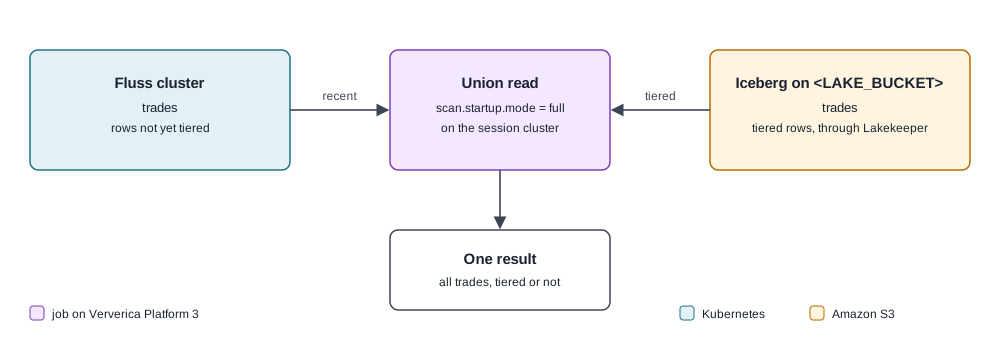
The query answers the running trade count and notional per ticker, over every trade. Save the draft as fluss-quickstart-union-trades, and replace its SQL with:
1CREATE TEMPORARY TABLE trade_volume_print (
2    `symbol`         STRING,
3    `trade_count`    BIGINT,
4    `total_notional` DECIMAL(38, 2)
5) WITH (
6    'connector' = 'print'
7);
8
9INSERT INTO trade_volume_print
10SELECT `symbol`, COUNT(*), SUM(`notional`)
11FROM `fluss_quickstart`.`finance`.`trades` /*+ OPTIONS('scan.startup.mode' = 'full') */
12GROUP BY `symbol`;
Run it in Debug mode, keeping Online data for trades. The trade_volume_print grid holds 6 rows, one per ticker, each with a trade count and the summed notional. Debug applies the updates of the streaming aggregate, so the grid holds the current totals, and they grow while the writer runs. Stop the Debug job with the red square. For example:

Lake-Only Read of the Trades
trades$lake reads only what tiering has committed to Iceberg. The query answers the buy and sell volume in the lake. Save the draft as fluss-quickstart-lake-trades, and replace its SQL with:
1CREATE TEMPORARY TABLE lake_side_print (
2    `side`           STRING,
3    `trade_count`    BIGINT,
4    `total_notional` DECIMAL(38, 2)
5) WITH (
6    'connector' = 'print'
7);
8
9INSERT INTO lake_side_print
10SELECT `side`, COUNT(*), SUM(`notional`)
11FROM `fluss_quickstart`.`finance`.`trades$lake`
12GROUP BY `side`;
Run it in Debug mode, keeping Online data for trades$lake. The lake_side_print grid holds 2 rows, SELL and BUY, each with a trade count and the summed notional, and pauses after its first fill. While the tiering service keeps committing snapshots, the read keeps going: stop the Debug job with the red square once the 2 rows are there. Its source runs one task per lake split of trades, which is why the session cluster has 16 task slots. For example:

Troubleshooting
Reading remote segments fails with NoSuchMethodError
A read fails with NoSuchMethodError: Configuration.getEnumSet once it reaches segments in remote storage. The draft carries the S3 filesystem JAR of 1.0.0-vv-3, the known issue on vera-4.5-jdk11-flink-1.20. Use fluss-fs-s3-0.9.1-vv-1.jar in its place, as Installing and Uploading the Client JARs shows.
The Catalogs page cannot open the catalog
The Catalogs page lists fluss_quickstart but cannot open its databases, with Unsupported options found for 'fluss'. Query the catalog's tables from a draft that carries the client JARs: queries in drafts work.
A row-limited read of the trades fails
A read of trades with a LIMIT fails once the table's segments leave the tablet servers. Drop the LIMIT from the query.
Planning fails with No LakeStoragePlugin available
The draft reads a table's lake side without the lake JARs. Add the client JARs to the draft's Additional Dependencies.
The session cluster does not start
The session cluster fails to start on the jdk17 engine of this platform release. Set its Engine Version to vera-4.5-jdk11-flink-1.20, as Creating the Deployment Target and the Session Cluster shows.
The session cluster is stopped or out of metaspace
A session cluster stops after 30 idle minutes. Before a Debug run, check that it shows RUNNING on Session Clusters, and click Start if it shows STOPPED.
The session cluster's metaspace is sized for repeated Debug runs of lake queries. If a Debug run still fails with OutOfMemoryError: Metaspace, restart the session cluster: click Stop and confirm, then click Start once it shows STOPPED.
A Debug run fails with Failed to get response from sql gateway server
The SQL gateway restarts its engine process, which takes a few seconds; retry the Debug run then. The failed run's job might keep running on the session cluster and hold its slots: cancel it from the session cluster's Flink UI before the retry.
Concurrent Debug reads fail with ClassCastException
Two Debug reads at once on the session cluster fail their remote log downloads. Run one Debug job at a time.
The console cancels a Debug run with "no started flag file"
The console cancels a Debug read that produces no row within 3 minutes. A lake read that waits that long for task slots fails this way: check that the session cluster has the task slots Creating the Deployment Target and the Session Cluster sets, and that no other Debug job holds them.
Further Reading
- Deploying Fluss on Kubernetes: installing the chart, registry access, and the bootstrap address
- Configuring Remote Storage: remote storage on S3 and other object stores
- Securing Fluss: SASL authentication and the client user
- Configuring Lake Tiering: the server's tiering configuration, other catalogs, and the tiering service's arguments for them
- Installing Fluss Setups: what each setup installs, and its options
- Running Fluss Jobs on Ververica Platform 3: each console step in general
- Reading and Writing Fluss: another lake catalog's credentials, a reader's options on another object store, and the Java client
- Ververica Platform 3 getting started: Ververica Platform 3 onboarding
- Ververica Platform 3 reference: Ververica Platform 3 reference
- Ververica Platform 3 secret values: secret values
- Ververica CLI: the Ververica CLI
- https://fluss.apache.org/docs/: upstream reference
- https://fluss.apache.org/docs/install-deploy/deploying-with-helm/: chart values
- https://docs.lakekeeper.io/: Lakekeeper
- https://docs.aws.amazon.com/AmazonS3/latest/userguide/create-bucket-overview.html: creating an S3 bucket
- https://docs.aws.amazon.com/IAM/latest/UserGuide/access_policies.html: IAM policies